
Update a Shopify theme without breaking your store
Shopify manages the platform, but theme, app and customization changes can affect your store. Prepare a test version and review the experience before and after publishing.
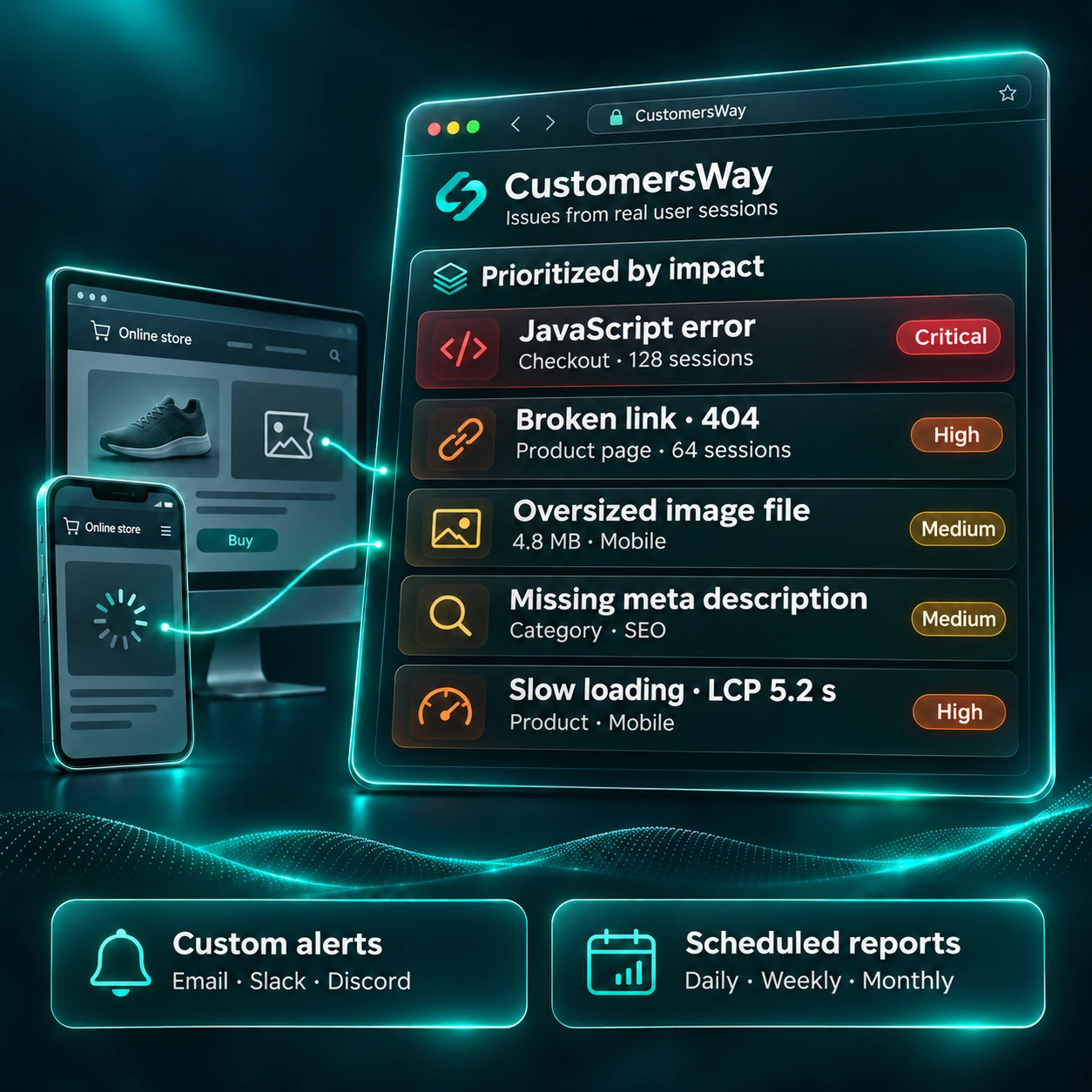
Before publishing a theme
- Duplicate the current theme and keep a version you can republish.
- Review Liquid customizations, app blocks and settings that must be transferred to the new theme.
- Preview product pages, variants, cart, navigation and mobile devices.
- Check links and available purchase flows without accidentally placing real orders.
After the change
- Compare JavaScript errors, failed resources and performance against the earlier baseline.
- Review affected browsers and pages before attributing an issue to the theme.
- Monitor real visits and check whether fixes reduce recurrence.
Related Shopify guides
Frequently asked questions
Do I update Shopify manually?
Shopify manages the platform; your team manages store theme, app and customization changes.
Does CustomersWay publish the theme?
No. Your team or agency publishes changes; CustomersWay helps detect incidents during real visits.
Why monitor before the change?
Earlier data helps compare errors and performance after publishing.
Monitor your Shopify store with real visits
Detect technical incidents and prioritize fixes by impact.