
Shopify apps: how to detect conflicts and errors
Apps can add blocks, scripts and integrations to your theme. Changes or incompatibilities can affect your catalog, cart or store speed.
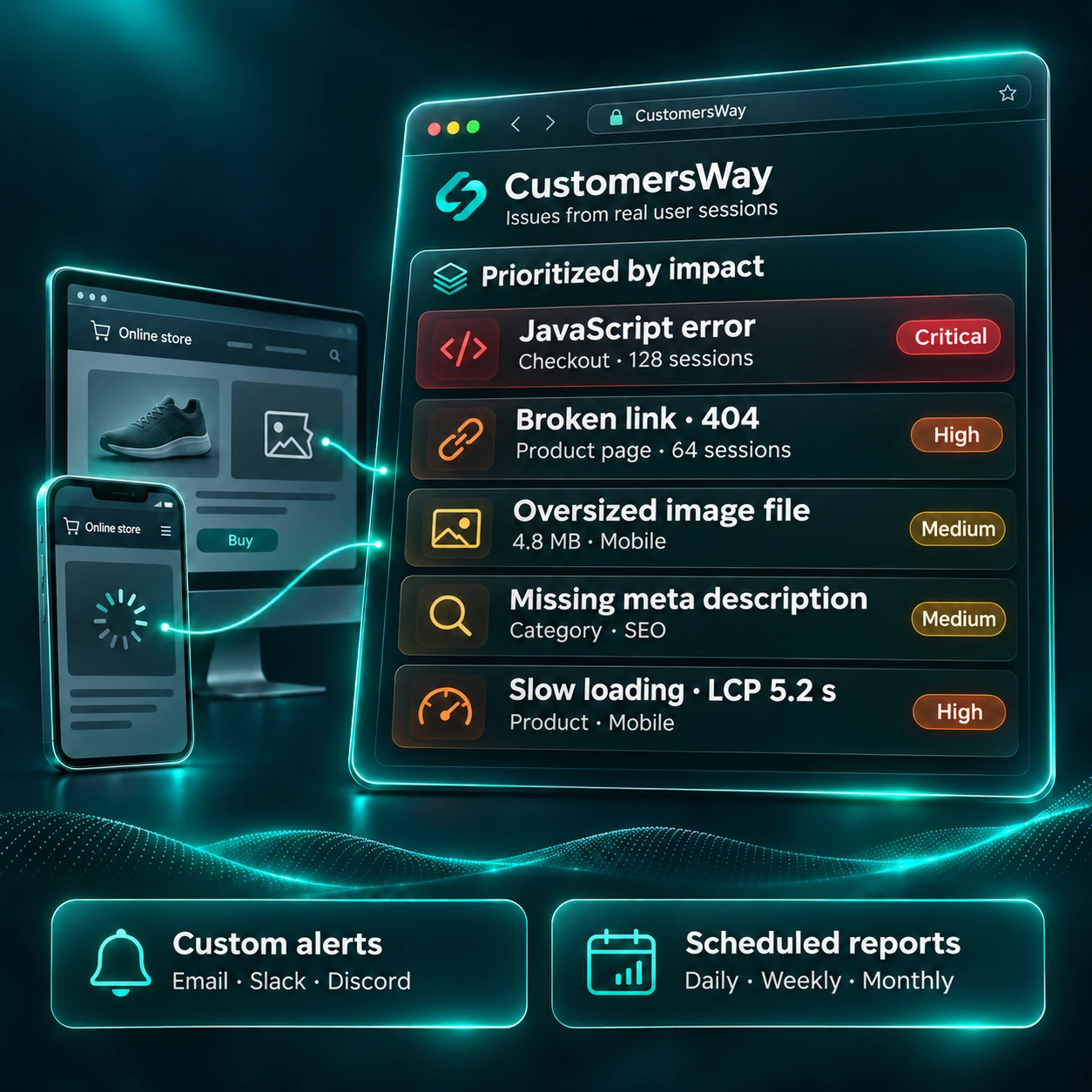
Signs of an app issue
- JavaScript errors or failed resources after installing or changing an application.
- Blocks, variants or cart buttons that do not behave as expected.
- Increased loading time associated with third-party scripts.
How to investigate without disrupting sales
- Compare when the issue began with recent changes and review affected pages and browsers.
- Test app blocks and changes in a theme copy before publishing.
- Contact the app provider when necessary and verify whether the error stops recurring in real visits.
Related Shopify guides
Frequently asked questions
Should I uninstall a live app to investigate?
Avoid uninstalling without assessing its impact and data; test in a duplicate theme first when possible.
Does CustomersWay automatically identify the responsible app?
Not necessarily. Context helps investigation, but your team must confirm the cause.
Does uninstalling an app remove all its changes?
Not always. Review the provider’s instructions and theme customizations before removing code or blocks.
Monitor your Shopify store with real visits
Detect technical incidents and prioritize fixes by impact.