
Slow WooCommerce: how to measure and improve speed
Slow product pages or checkout can involve the server, images, plugins or third-party scripts. Combine lab tests with real customer data.
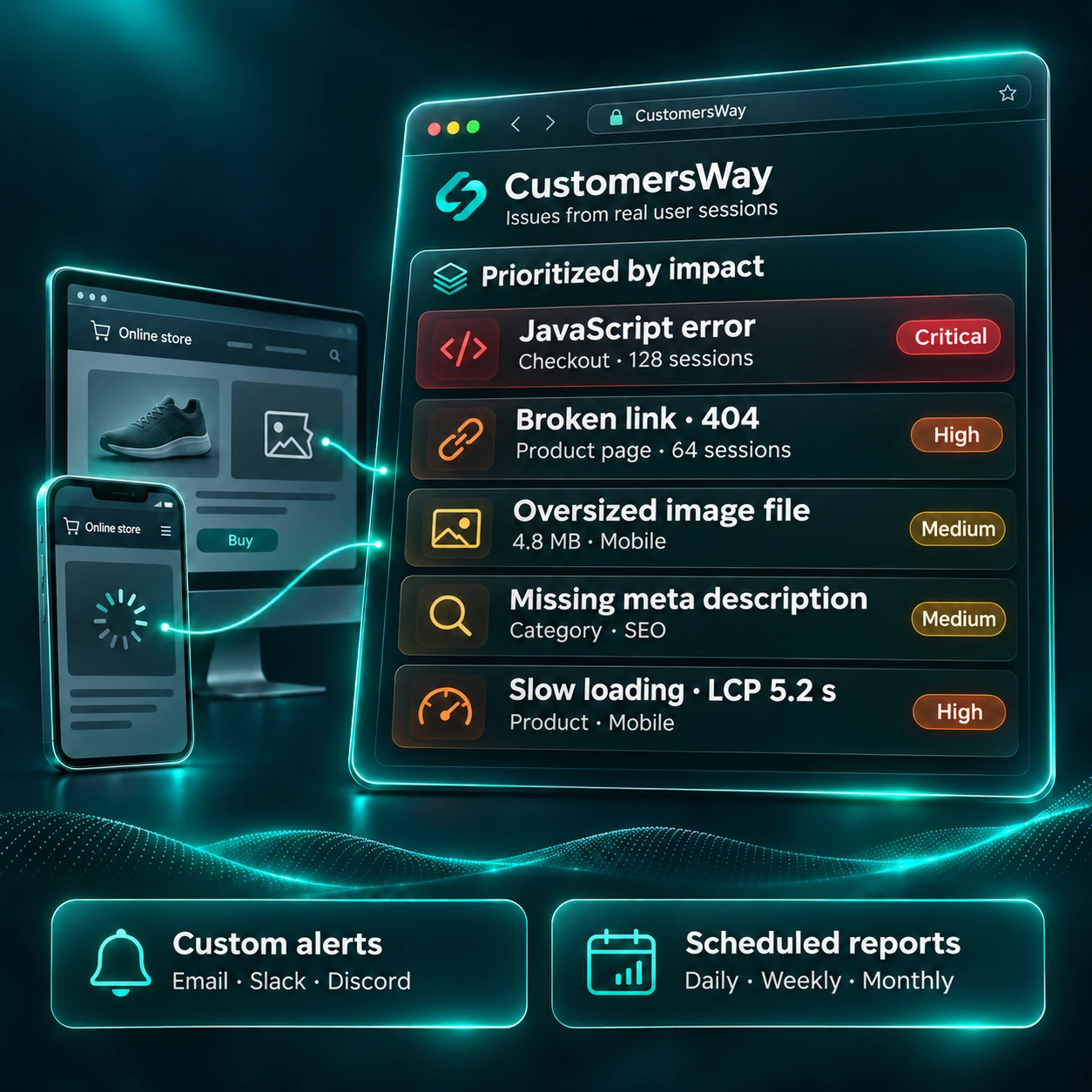
Where to start
- Compare LCP, CLS and TTFB by page and device, prioritizing categories, product and purchase pages.
- Review server response, product images and render-blocking resources.
- Identify plugins, third-party scripts and requests that add unnecessary work.
Caching and store performance
- Ensure caching excludes or correctly handles personalized cart, checkout and account pages.
- Test caching and optimization changes in staging before release.
- Review real-visit data after each change to spot regressions.
Related WooCommerce guides
Related articles
Frequently asked questions
Does a good lab score guarantee a fast store?
No. Real-user data covers devices, connections and journeys that an isolated test may miss.
Should checkout be cached?
It depends on the configuration: avoid serving personalized content or another customer’s session data and test the full journey.
Does CustomersWay optimize my store automatically?
No. It provides data to investigate and prioritize; your team applies and verifies improvements.
Monitor your WooCommerce store with real visits
Detect technical incidents and prioritize fixes by impact.