
WooCommerce plugins: detecting conflicts and errors
Payment, shipping, cache or customization plugins can conflict with the theme or other extensions. Investigate safely before changing your live store.
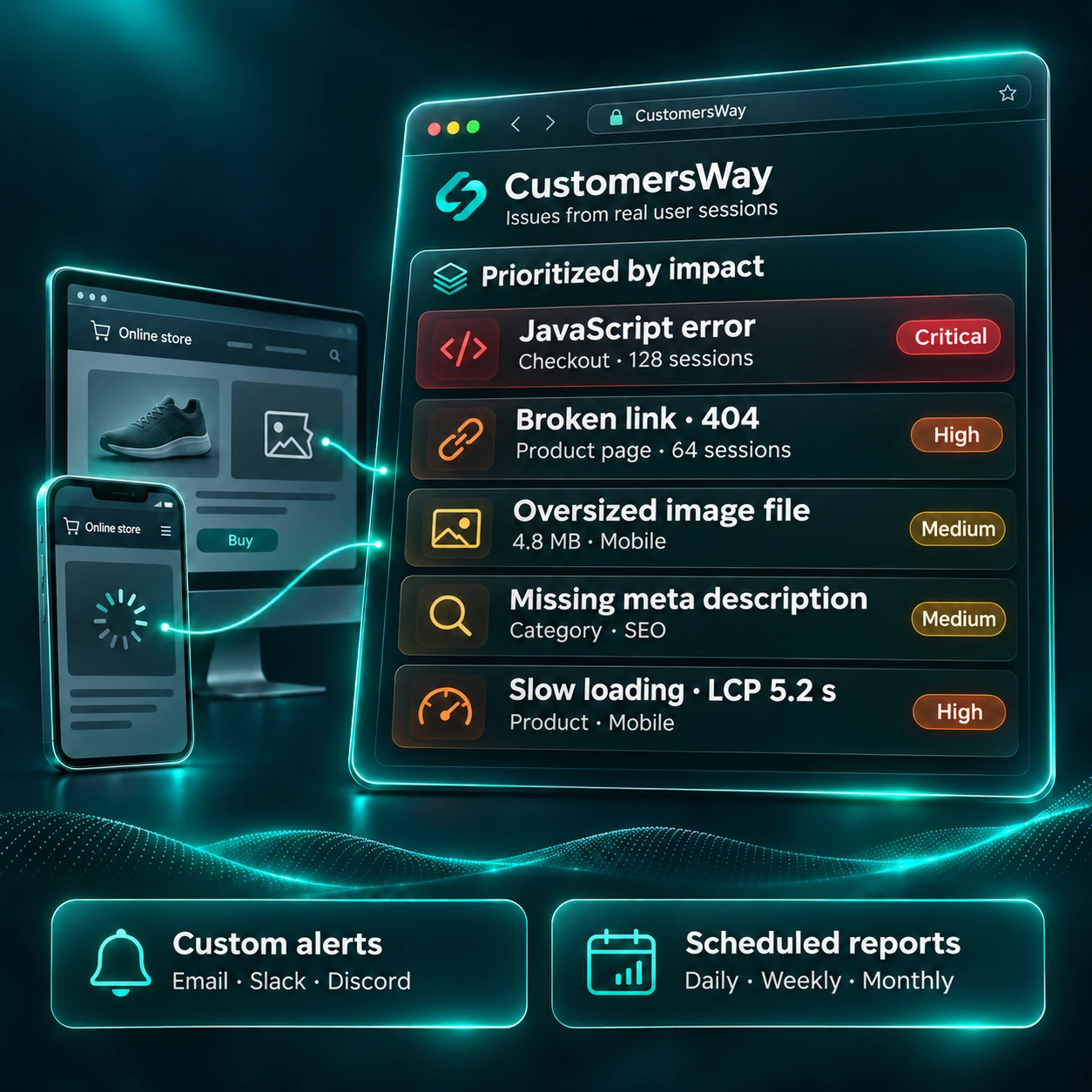
Signs of a possible plugin conflict
- JavaScript errors or failed requests appearing after installing or updating an extension.
- Cart or checkout buttons that do not respond in certain browsers.
- Shipping, coupon or payment gateway issues that require a full purchase-flow test.
How to isolate and verify the issue
- Compare the start of the issue with recent changes and review affected pages, devices and browsers.
- Test extensions and the theme in a controlled staging environment without disrupting real purchases.
- Review WordPress and provider logs where appropriate, then check whether the error stops recurring in real visits.
Related WooCommerce guides
Frequently asked questions
Should I disable plugins on my live store?
Avoid doing so without assessing the impact; use staging and a backup to investigate.
Does CustomersWay automatically identify the responsible plugin?
Not necessarily. Incident context helps investigation, but your team must confirm the cause.
Can payment plugins fail too?
Yes. A compatibility or integration issue can affect payment; test the gateway and review its logs as well.
Monitor your WooCommerce store with real visits
Detect technical incidents and prioritize fixes by impact.